 PUSH & LIFTPUSH & LIFT

Push & Lift · STANDINGS, RELATIVE, FUEL, LAPS and CLIMA: race data above the simulator
BLACK BOX is the Push & Lift group of race-data apps. Each is an overlay: a transparent box floating above the simulator, readable at a glance while driving.
| App | What it shows | Factory size |
|---|---|---|
| STANDINGS | Session standings: position, race number, driver, pits, car make, licence/iRating, iRating change, times… In multiclass sessions each class has its own block. | 560 × 520 px |
| RELATIVE | Drivers immediately ahead and behind on track, with gaps in seconds. | 460 × 420 px |
| FUEL | Fuel on board, consumption per lap, remaining fuel laps and surplus/shortfall to finish. | 480 × 300 px |
| LAPS | Your laps: current, predicted with delta, best, last, pace and history. | 260 × 320 px |
| CLIMA | Track/air temperature, wind relative to the car’s nose, humidity, rain, track wetness and when it will get wetter or dry. | 220 × 340 px |
All five open, start, move and configure the same way. Explained once here.
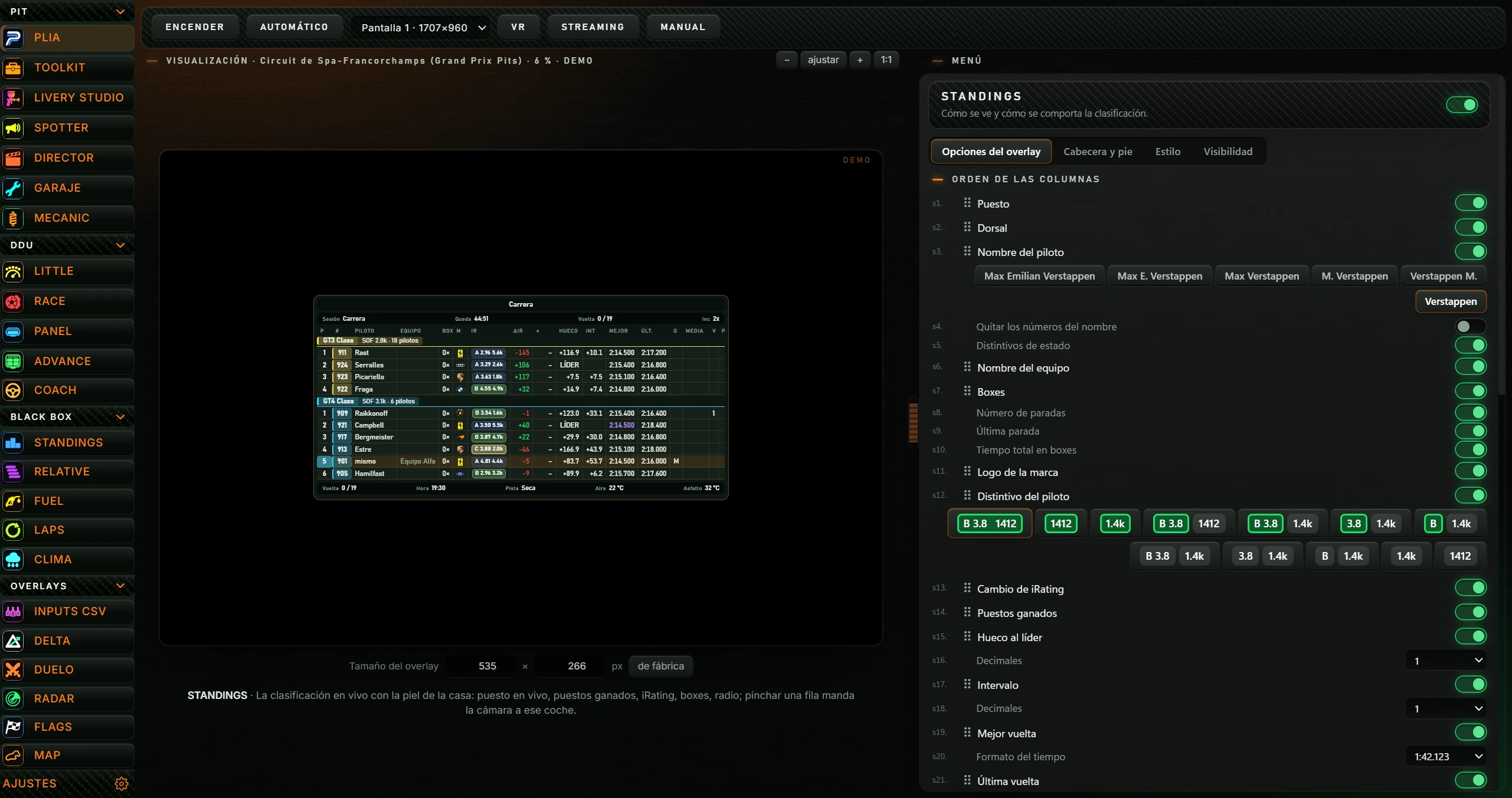

| Button | What it does |
|---|---|
| ENCENDER (turn on) / APAGAR (turn off) | Turns the on-screen overlay on/off. When on, APAGAR is orange. Starting here shows its orange editing frame so you can position it (see 2.3). |
| AUTOMÁTICO (automatic) | When enabled, starts the app with iRacing or Le Mans Ultimate and stops it when the simulator closes. Click again to disable. Orange when enabled, like APAGAR. |
| Monitor list | Selects the overlay monitor. Each entry shows number and size, for example Pantalla 1 · 1707×960. Without a choice it uses Windows’ primary monitor. |
| VR | Explains VR viewing: in OpenKneeboard capture the PL OVERLAYS window. |
| STREAMING | Copies the overlay URL for an OBS browser source and reports required width×height. If copying fails, only displays the address. |
| MANUAL | Opens this app’s manual on the Push & Lift website in a browser. |
VR and STREAMING notices appear beside the buttons and disappear after 4 seconds.
When the overlay is off, its preview appears on the left inside a black simulator-like frame with DEMO in the corner. Engine demo data means no need to enter the track.
When enabled, the preview becomes a notice: the overlay is live on your screen; menu changes apply immediately; hover and use EDITAR to move it. The heading becomes EN VIVO (live), explaining that menu changes affect the floating overlay.
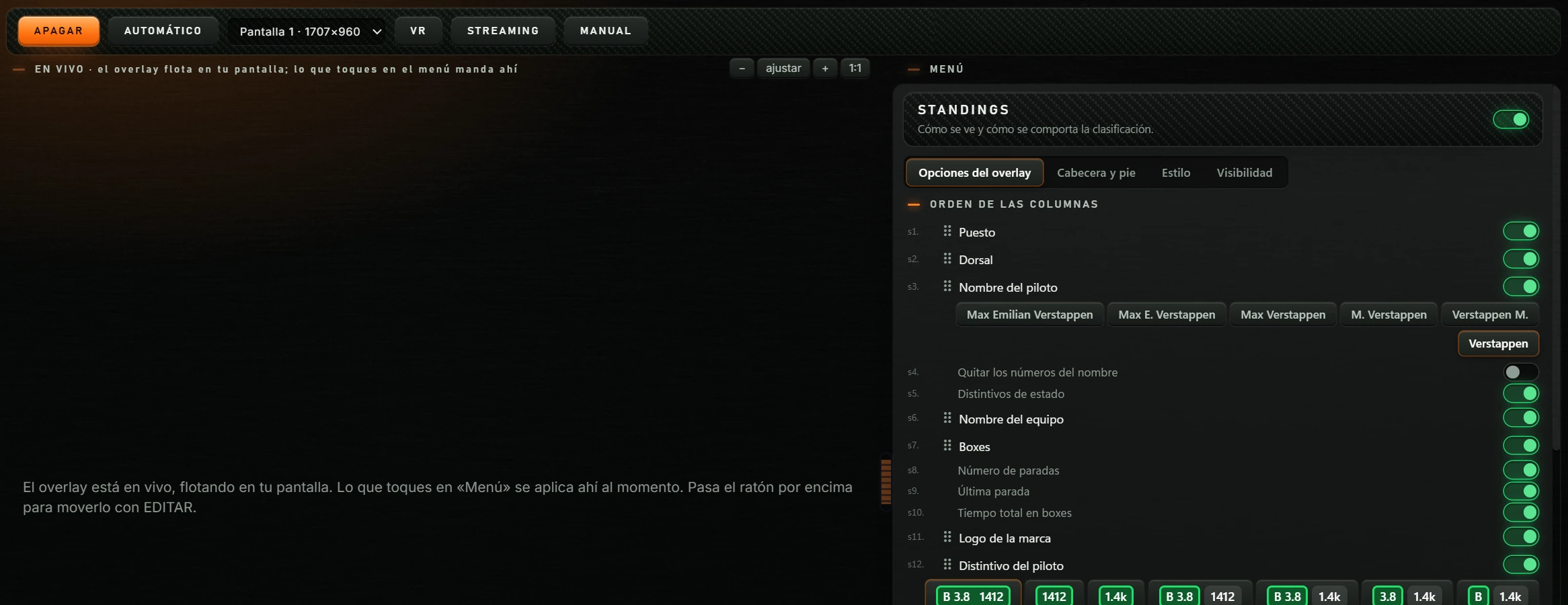
The app’s own menu is on the right. Changes save automatically and apply immediately to preview and active overlay. Each app section explains its menu.
Drag the orange divider between preview/menu to resize the columns. Double-click restores equal halves.
Enabled overlays float above everything in a transparent window named PL OVERLAYS. Clicks pass through to the simulator so overlays do not interfere.
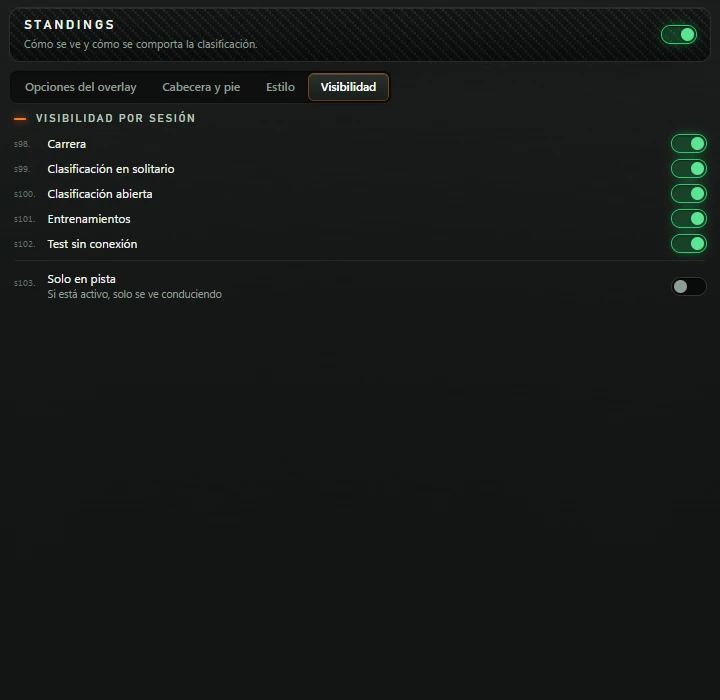
STANDINGS, RELATIVE, FUEL and LAPS have a tab Visibilidad (visibility) with these options:
| Option | What it does |
|---|---|
| Carrera (race) · Clasificación en solitario (solo qualifying) · Clasificación abierta (open qualifying) · Entrenamientos (practice) · Test sin conexión (offline test) | One toggle per session type. Disable sessions where you do not want the overlay. All enabled by default. |
| Solo en pista (on track only) | When enabled, shows only while driving inside the car. Default off in STANDINGS/RELATIVE, on in FUEL/LAPS. |
CLIMA has separate Solo en pista controls for each of its two areas (see CLIMA).
FUEL, LAPS and CLIMA offer three layouts. Legacy uses the familiar boxes (default). Redonda (round) puts everything in a circle. Barra (bar) uses a single row. Each app explains what each layout shows.
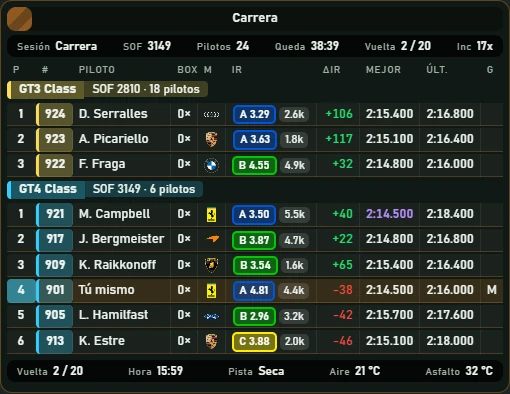
Session standings with header/footer session-data bars and one row per driver. Your row is orange and called Tú mismo (yourself) in the demo.
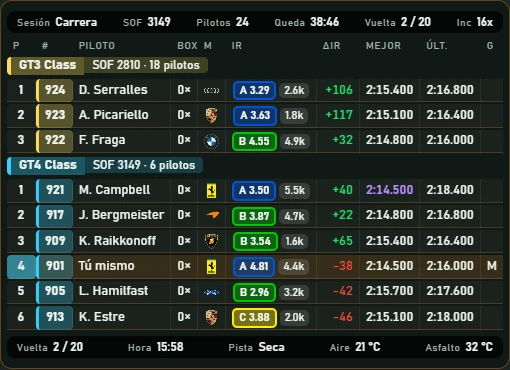
Header: STANDINGS and a description of standings appearance/behaviour. Four tabs: Opciones del overlay (overlay options), Cabecera y pie (header and footer), Estilo (style) and Visibilidad (visibility).
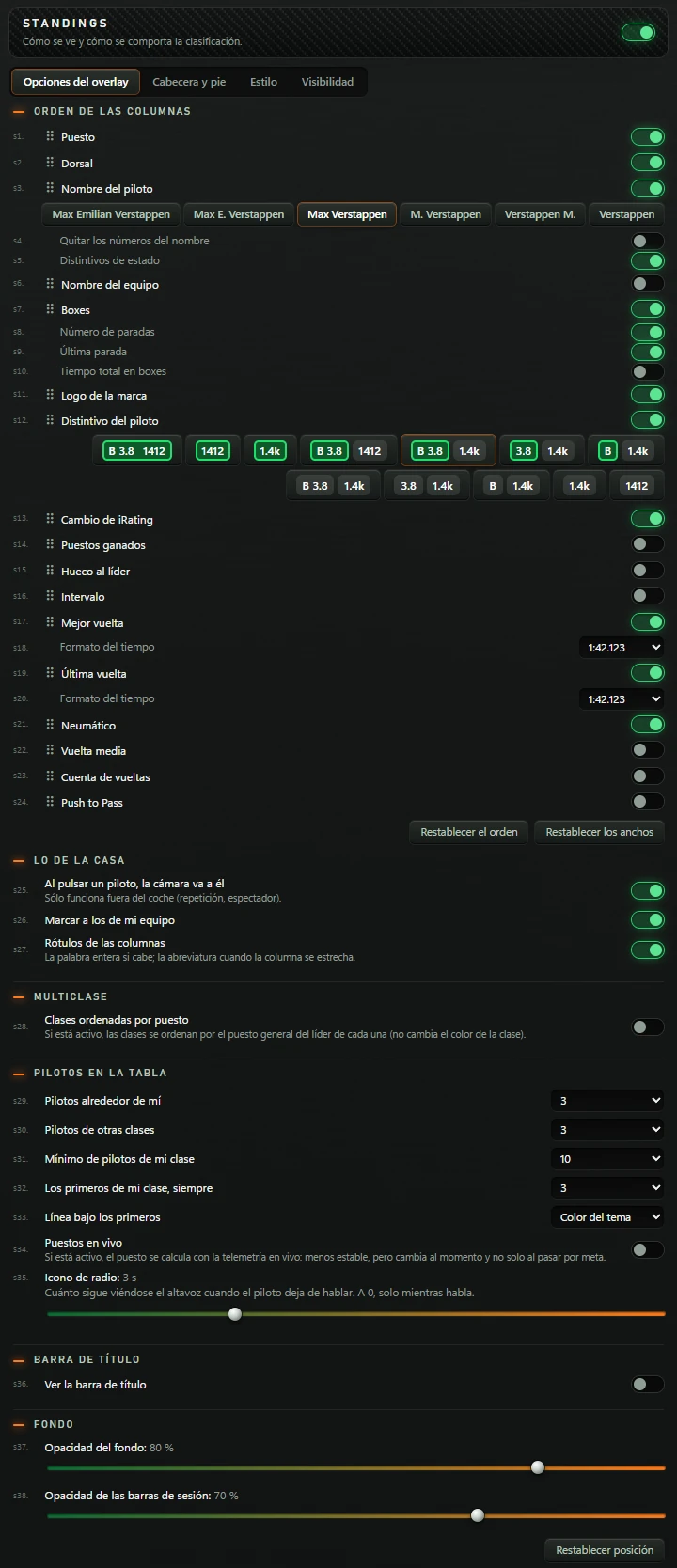
ORDEN DE LAS COLUMNAS (column order). Each column has a visibility toggle and ⠿ handle: drag up/down to reorder the table.
| Column | Factory default | Options shown when enabled |
|---|---|---|
| Puesto (position) | on | — |
| Dorsal (race number) | on | — |
| Nombre del piloto (driver name) | on | Name format, six example buttons: Max Emilian Verstappen, Max E. Verstappen, Max Verstappen (default), M. Verstappen, Verstappen M., Verstappen. Toggle Quitar los números del nombre (remove numbers from names) (off). Toggle Distintivos de estado (status badges) (on): PIT, BOX, OUT and radio speaker beside the name. |
| Nombre del equipo (team name) | off | — |
| Boxes (pits) | on | Toggles Número de paradas (stop count) (on), Última parada (last stop) (on) and Tiempo total en boxes (total pit time) (off). |
| Logo de la marca (manufacturer logo) | on | — |
| Distintivo del piloto (driver badge) | on | Twelve licence/iRating format buttons, examples B 3.8 and 1412 or 1.4k: coloured or monochrome licence, full/short iRating, with/without licence letter. Default: coloured licence and short iRating. |
| Cambio de iRating (iRating change) | on | — |
| Puestos ganados (positions gained) | off | — |
| Hueco al líder (gap to leader) | off | List Decimales (decimal places): 1, 2 or 3; default 1. |
| Intervalo (interval) | off | List Decimales (decimal places): 1, 2 or 3; default 1. |
| Mejor vuelta (best lap) | on | List Formato del tiempo (time format): 1:42.123 (default), 1:42.1, 1:42, 42.123, 42.1 or 42. |
| Última vuelta (last lap) | on | List Formato del tiempo (time format), same as above. |
| Neumático (tyre) | on | — compound letter |
| Vuelta media (average lap) | off | List Formato del tiempo (time format) (default 1:42.1). |
| Cuenta de vueltas (lap count) | off | — |
| Push to Pass | off | — uses remaining; green while active |
Below the list: Restablecer el orden (reset order) restores factory column order, and Restablecer los anchos (reset widths) restores automatic width for each column.
| Section and option | What it does | Factory default |
|---|---|---|
| LO DE LA CASA (house features) | ||
| Al pulsar un piloto, la cámara va a él (click driver to follow with camera) | Sends the simulator camera to that row’s car. Help says it works only outside the car, in replay/spectator mode. | on |
| Marcar a los de mi equipo (mark teammates) | Adds EQUIPO beside teammates’ names. | on |
| Rótulos de las columnas (column headings) | Heading row above the table. Full words when they fit, abbreviations when narrow. | on |
| MULTICLASE (multiclass) | ||
| Clases ordenadas por puesto (classes ordered by position) | Orders classes by each leader’s overall position, without changing class colours. | off |
| PILOTOS EN LA TABLA (drivers in table) | ||
| Pilotos alrededor de mí (drivers around me) | Drivers shown above and below you; list from 1 to 10. | 3 |
| Pilotos de otras clases (drivers in other classes) | Drivers shown from each other class; list 0–63. | 3 |
| Mínimo de pilotos de mi clase (minimum drivers in my class) | Minimum visible drivers in your class; list 1–63. | 10 |
| Los primeros de mi clase, siempre (always show class leaders) | Class leaders always shown regardless of your position; list 0–63. | 3 |
| Línea bajo los primeros (line below leaders) | Divider under those leaders: Ninguna (none), Color del tema (theme) or Color de resalte (highlight). Appears only when the preceding option is above 0. | Color del tema (theme colour) |
| Puestos en vivo (live positions) | Uses live telemetry for position: less stable, but updates immediately rather than only at the finish line. | off |
| Icono de radio (radio icon) | Slider 0–10 s, in 0.5 s steps: how long the speaker remains after speech stops. At 0, only while speaking. | 3 s |
| BARRA DE TÍTULO (title bar) | ||
| Ver la barra de título (show title bar) | Top strip showing session type: race, practice, qualifying… | off |
| Barra de progreso (progress bar) | Available with title bar on. In races fills the strip according to completed laps. | on |
| FONDO (background) | ||
| Opacidad del fondo (background opacity) | Slider 0–100%. At 0 the background is transparent. | 80 % |
| Opacidad de las barras de sesión (session-bar opacity) | Slider 0–100% for header/footer backgrounds. | 70 % |
At the end, Restablecer posición (reset position) (see 2.4).
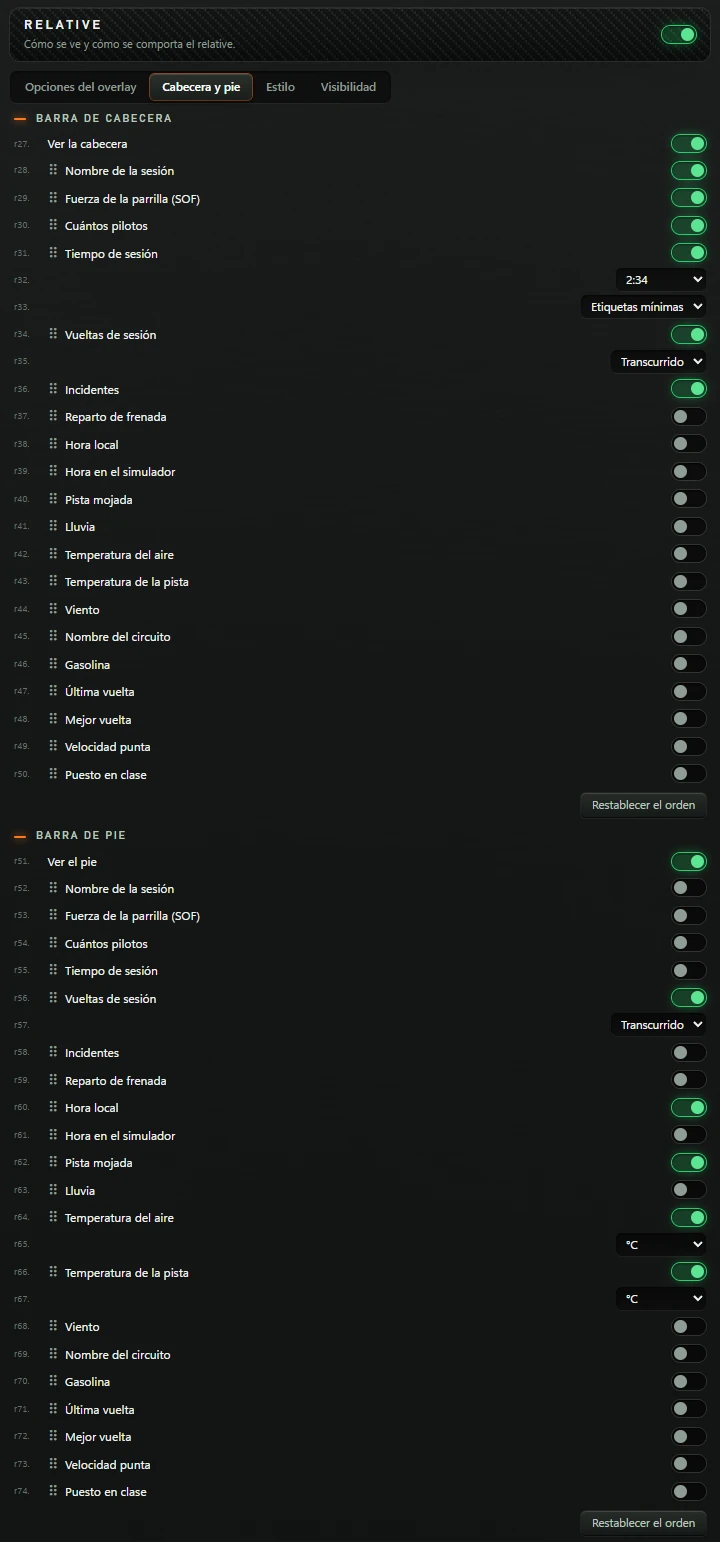
Two columns: BARRA DE CABECERA (header bar) (above table) and BARRA DE PIE (footer bar) (below). Identical tab in STANDINGS and RELATIVE.
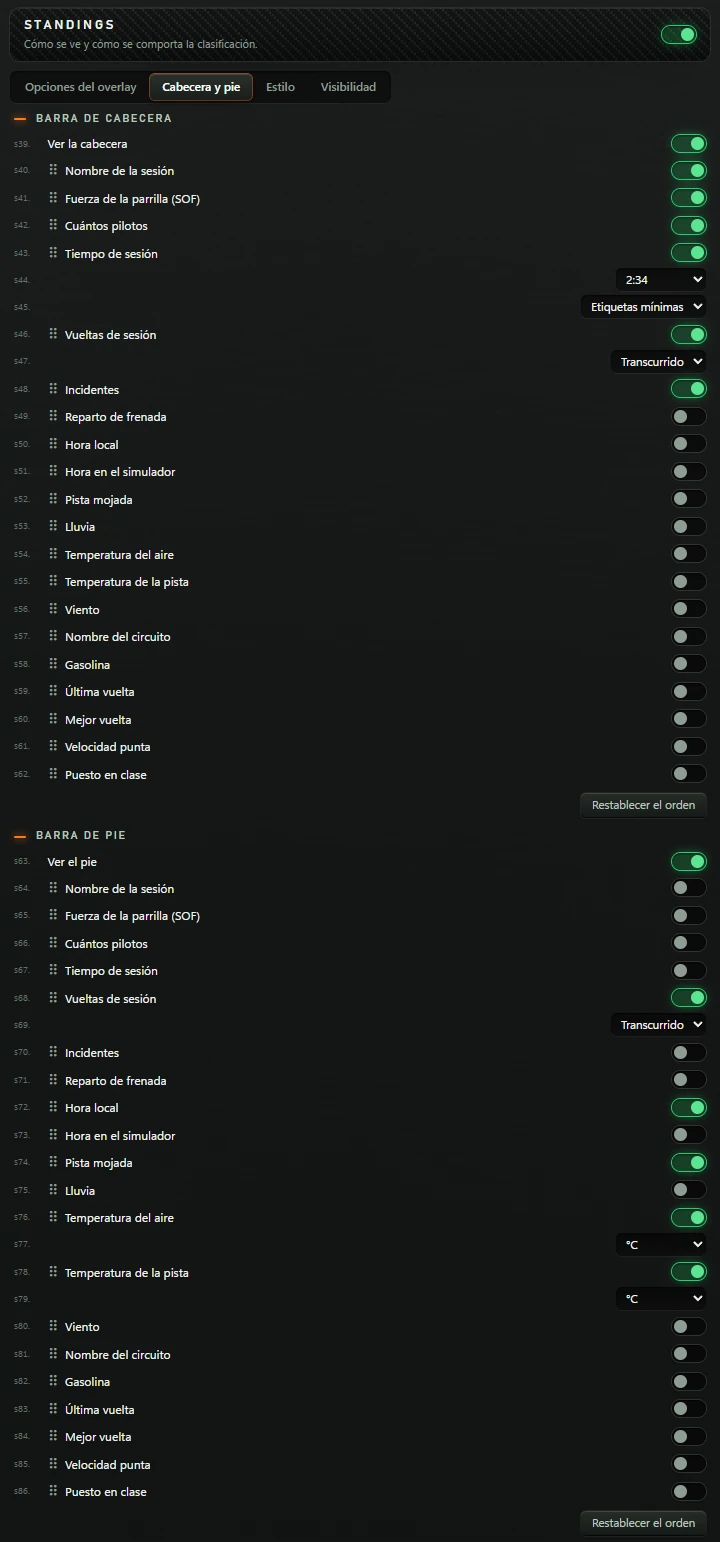
| Data item in menu | Bar label | Header | Footer | Options when enabled |
|---|---|---|---|---|
| Nombre de la sesión (session name) | Sesión (session) | yes | no | — |
| Fuerza de la parrilla (SOF) (strength of field) | SOF | yes | no | — |
| Cuántos pilotos (driver count) | Pilotos (drivers) | yes | no | — |
| Tiempo de sesión (session time) | Queda (remaining) | yes | no | Two lists: time format 2:34 or 00:12:34; labels Etiquetas mínimas (minimal), Etiquetas cortas (short) or Sin etiquetas (none). |
| Vueltas de sesión (session laps) | Vuelta (lap) | yes | yes | List: Transcurrido (elapsed) or Restante (remaining). |
| Incidentes (incidents) | Inc | yes | no | — |
| Reparto de frenada (brake bias) | Reparto (bias) | no | no | — |
| Hora local (local time) | Hora (time) | no | yes | — |
| Hora en el simulador (simulator time) | Reloj (clock) | no | no | — |
| Pista mojada (track wetness) | Pista (track) | no | yes | — |
| Lluvia (rain) | Lluvia (rain) | no | no | — |
| Temperatura del aire (air temperature) | Aire (air) | no | yes | List: °C or °F. |
| Temperatura de la pista (track temperature) | Asfalto (asphalt) | no | yes | List: °C or °F. |
| Viento (wind) | Viento (wind) | no | no | Two buttons, 7 ↗ and ↗ 7: speed left or right of the arrow. |
| Nombre del circuito (track name) | Circuito (circuit) | no | no | — |
| Gasolina (fuel) | Gasolina (fuel) | no | no | — |
| Última vuelta (last lap) | Última (last) | no | no | — |
| Mejor vuelta (best lap) | Mejor (best) | no | no | — |
| Velocidad punta (top speed) | Punta (top) | no | no | — |
| Puesto en clase (class position) | Clase (class) | no | no | — |
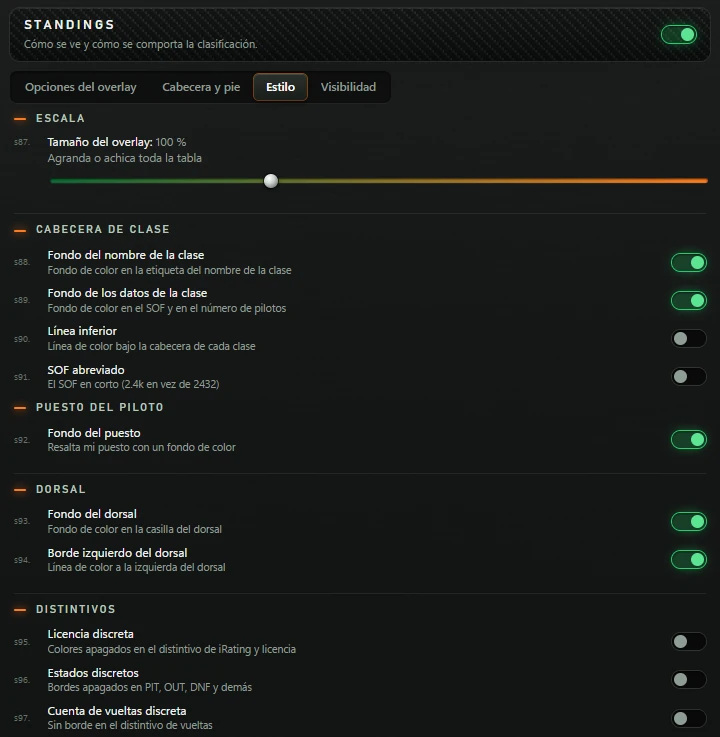
| Section and option | What it does | Factory default |
|---|---|---|
| ESCALA (scale) | ||
| Tamaño del overlay (overlay size) | Slider 50–200%, steps of 5. Scales the entire table. | 100 % |
| CABECERA DE CLASE (class header) | ||
| Fondo del nombre de la clase (class-name background) | Coloured background on the class-name label. | on |
| Fondo de los datos de la clase (class-data background) | Coloured background behind SOF and driver count. | on |
| Línea inferior (bottom line) | Coloured line below each class header. | off |
| SOF abreviado (short SOF) | Short SOF, such as 2.4k instead of 2432. | off |
| PUESTO DEL PILOTO (driver position) | ||
| Fondo del puesto (position background) | Highlights your position with a coloured background. | on |
| DORSAL (race number) | ||
| Fondo del dorsal (number background) | Coloured background in the number cell. | on |
| Borde izquierdo del dorsal (number left border) | Coloured line left of the number. | on |
| DISTINTIVOS (badges) | ||
| Licencia discreta (subtle licence) | Muted licence and iRating badge colours. | off |
| Estados discretos (subtle statuses) | Muted borders for PIT, OUT, DNF and other statuses. | off |
| Cuenta de vueltas discreta (subtle lap count) | No border around the lap badge. | off |
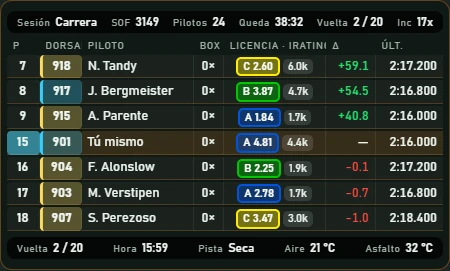
Drivers immediately ahead/behind on track, regardless of lap. You stay in the middle, orange.
RELATIVE header describes relative appearance/behaviour. Same four tabs as STANDINGS: Opciones del overlay (overlay options), Cabecera y pie (header and footer), Estilo (style) and Visibilidad (visibility). Cabecera y pie is identical to STANDINGS (see STANDINGS table).
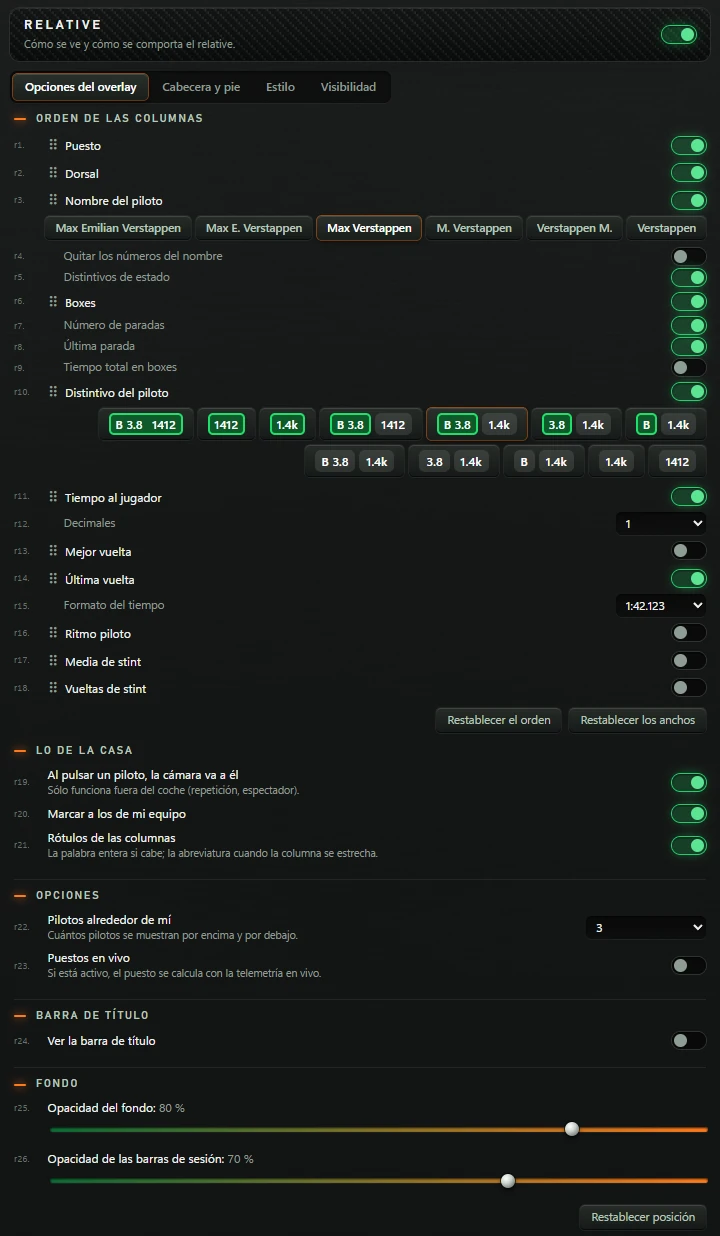
| Column | Factory default | Options shown when enabled |
|---|---|---|
| Puesto (position) | on | — |
| Dorsal (race number) | on | — |
| Nombre del piloto (driver name) | on | Same six name formats as STANDINGS, Quitar los números del nombre (remove numbers from names) (off) and Distintivos de estado (status badges) (on). |
| Boxes (pits) | on | Número de paradas (stop count) (on), Última parada (last stop) (on) and Tiempo total en boxes (total pit time) (off). |
| Distintivo del piloto (driver badge) | on | Same twelve licence/iRating formats as STANDINGS. |
| Tiempo al jugador (gap to player) | on | List Decimales (decimal places): 1, 2 or 3; default 1. |
| Mejor vuelta (best lap) | off | List Formato del tiempo (time format) (1:42.123, 1:42.1, 1:42, 42.123, 42.1 or 42). |
| Última vuelta (last lap) | on | List Formato del tiempo (time format) (default 1:42.123). |
| Ritmo piloto (driver pace) | off | List Formato del tiempo (time format). |
| Media de stint (stint average) | off | List Formato del tiempo (time format). |
| Vueltas de stint (stint laps) | off | — |
Below: Restablecer el orden (reset order) and Restablecer los anchos (reset widths), as in STANDINGS.
| Section and option | What it does | Factory default |
|---|---|---|
| LO DE LA CASA (house features) | ||
| Al pulsar un piloto, la cámara va a él (click driver to follow with camera) | Same as STANDINGS: works only outside the car, in replay/spectator mode. | on |
| Marcar a los de mi equipo (mark teammates) | EQUIPO label beside teammates. | on |
| Rótulos de las columnas (column headings) | Heading row above the table. | on |
| OPCIONES (options) | ||
| Pilotos alrededor de mí (drivers around me) | Drivers shown above/below; list 1–10. | 3 |
| Puestos en vivo (live positions) | Position calculated using live telemetry when enabled. | off |
| BARRA DE TÍTULO (title bar) | ||
| Ver la barra de título (show title bar) | Top session-type strip. Enabling it reveals Barra de progreso (progress bar) (on). | off |
| FONDO (background) | ||
| Opacidad del fondo (background opacity) | Slider 0–100%. | 80 % |
| Opacidad de las barras de sesión (session-bar opacity) | Slider 0–100%. | 70 % |
At the end, Restablecer posición (reset position).
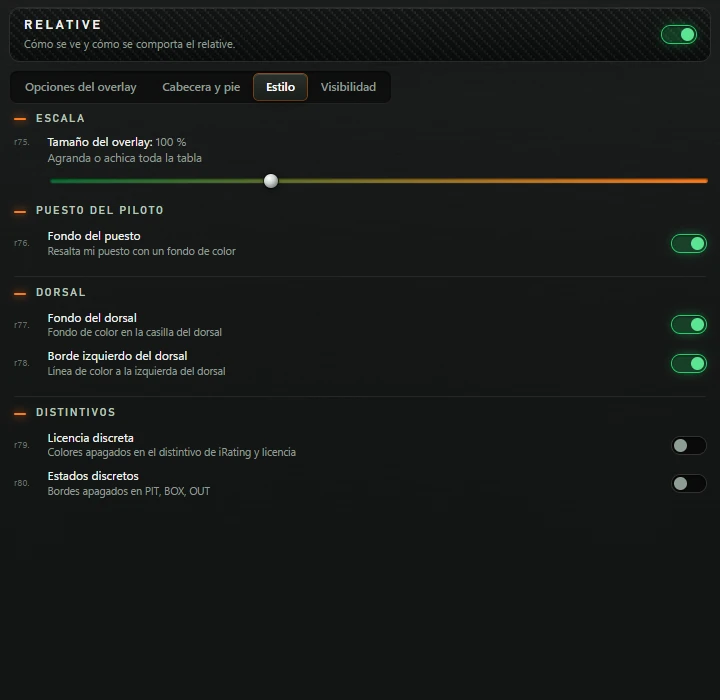
| Option | What it does | Factory default |
|---|---|---|
| Tamaño del overlay (overlay size) | Slider 50–200%, steps of 5. Scales the entire table. | 100 % |
| Fondo del puesto (position background) | Highlights your position with a coloured background. | on |
| Fondo del dorsal (number background) | Coloured background in the number cell. | on |
| Borde izquierdo del dorsal (number left border) | Coloured line left of the number. | on |
| Licencia discreta (subtle licence) | Muted licence and iRating badge colours. | off |
| Estados discretos (subtle statuses) | Muted borders on PIT, BOX, OUT. | off |
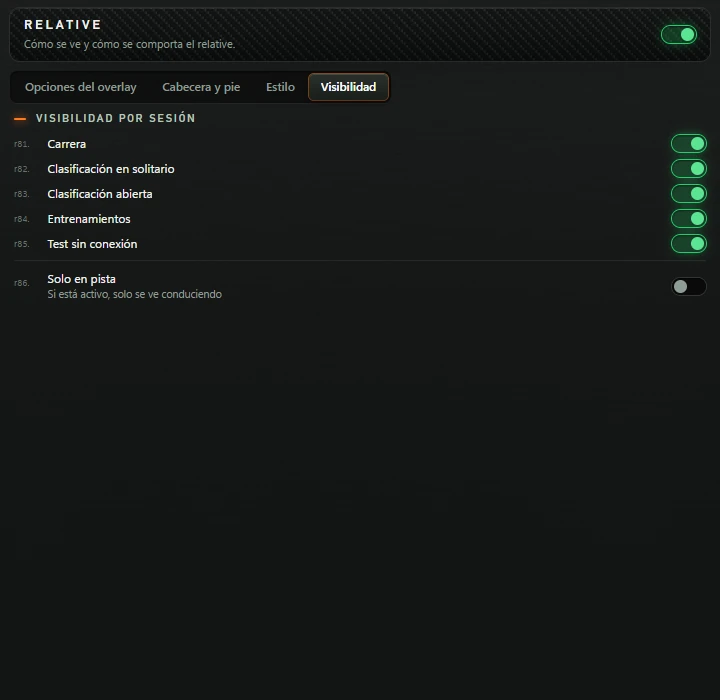
As STANDINGS: five session types and Solo en pista (on track only) (off). See 2.4.
FUEL tells whether current fuel will reach the finish. The engine excludes atypical laps to avoid distorted consumption.
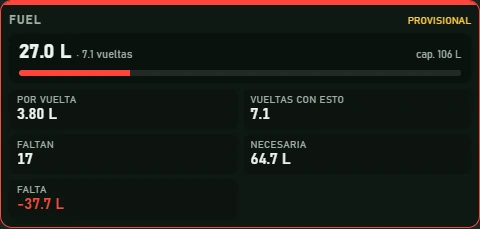
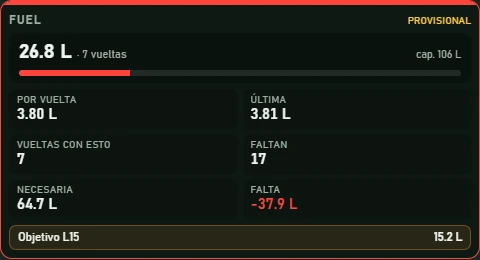
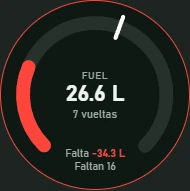

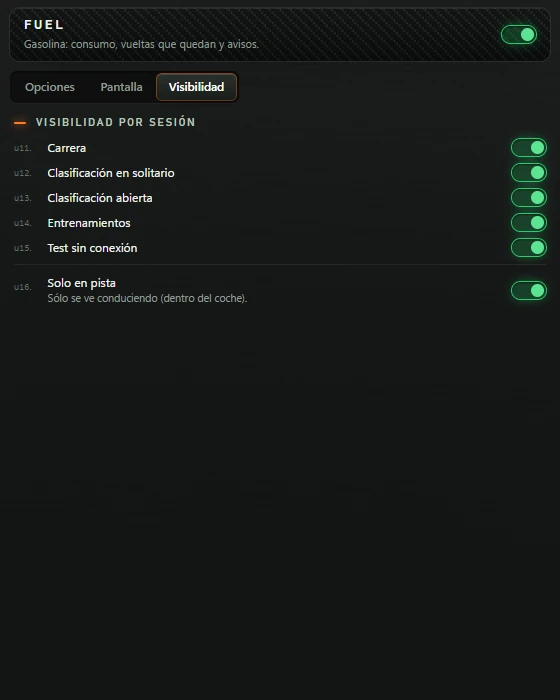
FUEL header describes consumption, remaining laps and warnings. Three tabs: Opciones (options), Pantalla (display) and Visibilidad (visibility).
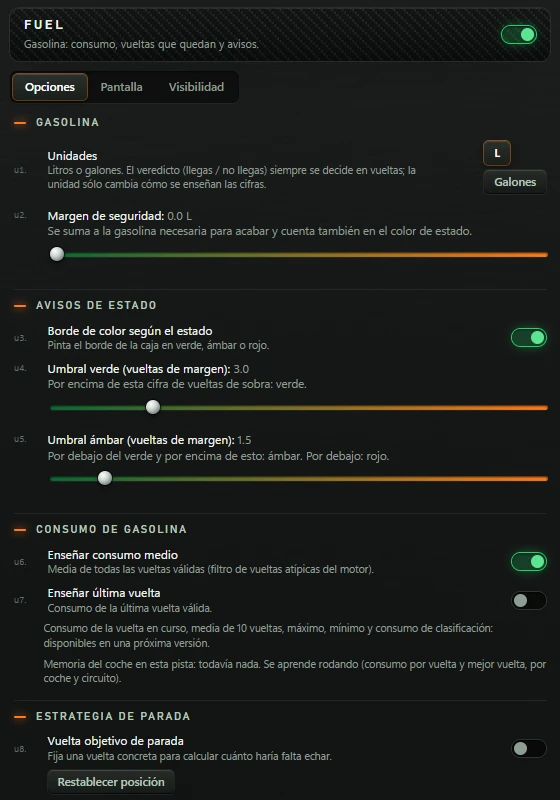
| Section and option | What it does | Factory default |
|---|---|---|
| GASOLINA (fuel) | ||
| Unidades (units) | Buttons L and Galones (gallons). Whether fuel is sufficient is always decided in laps; units only change displayed numbers. | L |
| Margen de seguridad (safety margin) | Slider 0–50, steps 0.1 in your unit. Added to required fuel and included in status colour. | 0.0 L |
| AVISOS DE ESTADO (status warnings) | ||
| Borde de color según el estado (status-coloured border) | Colours the box border green, amber or red. | on |
| Umbral verde (vueltas de margen) (green threshold, spare laps) | Slider 0–15, steps 0.5. Green above this number of spare laps. | 3.0 |
| Umbral ámbar (vueltas de margen) (amber threshold, spare laps) | Slider 0–15, steps 0.5. Amber below green and above this threshold; red below it. | 1.5 |
| CONSUMO DE GASOLINA (fuel consumption) | ||
| Enseñar consumo medio (show average consumption) | Por vuelta box. Mean of all valid laps, with engine outlier filtering. | on |
| Enseñar última vuelta (show last lap) | Última box: consumption on last valid lap. | off |
| ESTRATEGIA DE PARADA (pit strategy) | ||
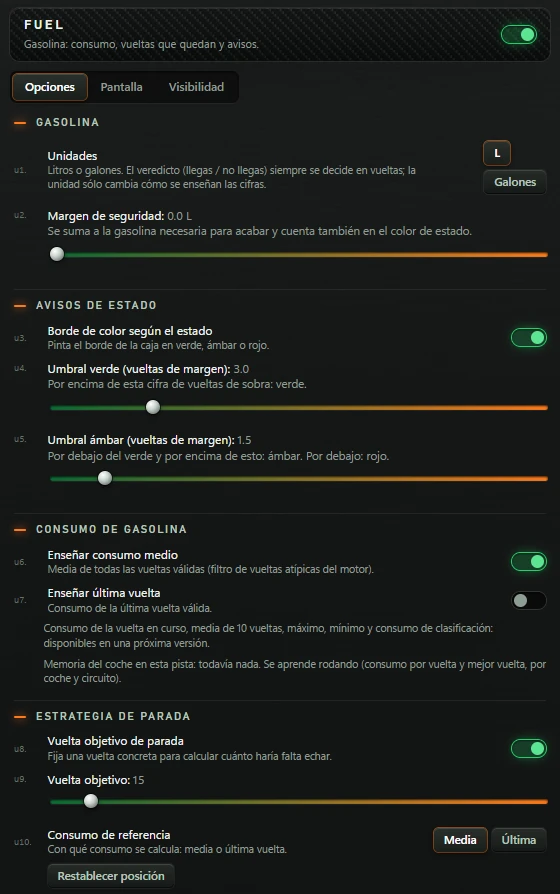
| Vuelta objetivo de parada (target pit lap) | Sets a specific lap to calculate the fuel to add. Enabling reveals the following two options. | off |
| Vuelta objetivo (target lap) | Slider 1–200: planned pit lap. | 15 |
| Consumo de referencia (reference consumption) | Buttons Media (average) and Última (last). Consumption used for calculation: average or last lap. | Media (average) |
Two notes below consumption options:
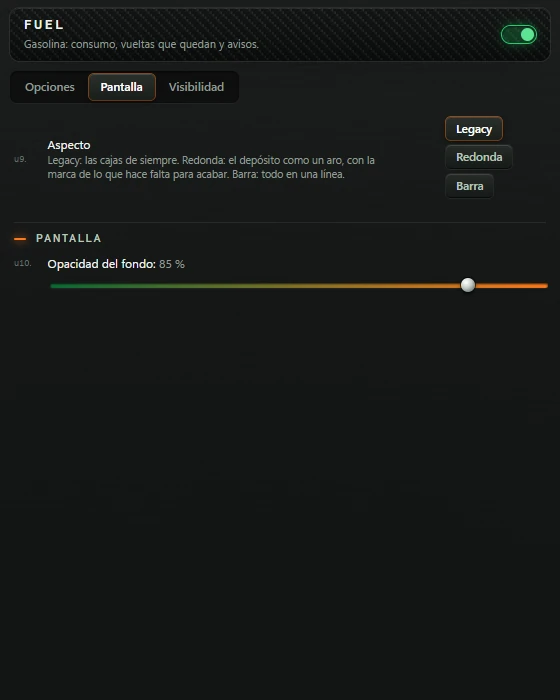
| Option | What it does | Factory default |
|---|---|---|
| Aspecto (appearance) | Buttons Legacy, Redonda (round) and Barra (bar). Legacy: standard boxes. Redonda: tank ring with required-fuel marker. Barra: everything on one line. | Legacy |
| Opacidad del fondo (background opacity) | Slider 0–100%. | 85 % |
Five session types and Solo en pista (on track only), enabled here: visible only while driving inside the car. See 2.4.
LAPS is your stopwatch: current lap, its predicted finish and your times.
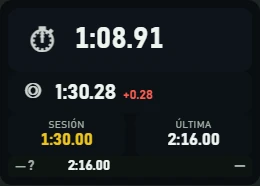
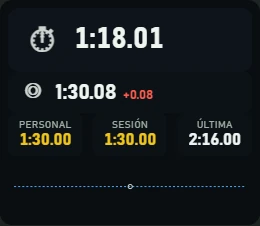
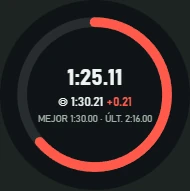

LAPS header describes current/predicted laps and history. Three tabs: Pantalla (display), Opciones (options) and Visibilidad (visibility).
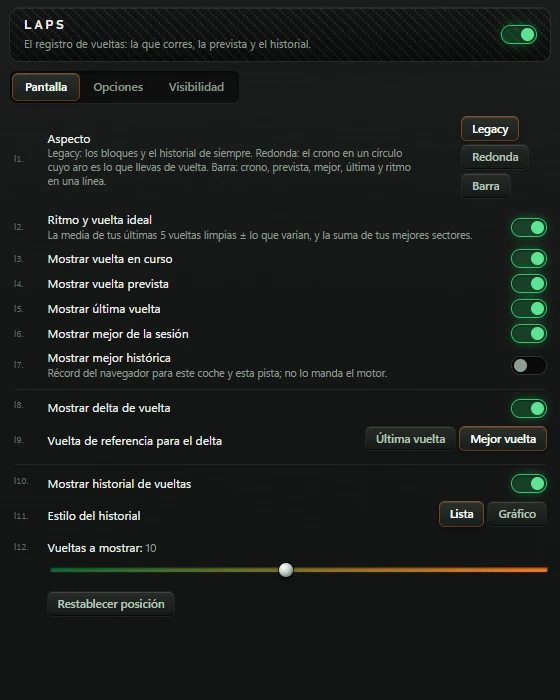
| Option | What it does | Factory default |
|---|---|---|
| Aspecto (appearance) | Legacy, Redonda (round) or Barra (bar). Legacy: standard blocks/history. Redonda: stopwatch circle with lap-progress ring. Barra: current, predicted, best, last and pace on one line. | Legacy |
| Ritmo y vuelta ideal (pace and ideal lap) | RITMO/IDEAL row: mean of last 5 clean laps ± variation and sum of best sectors. | on |
| Mostrar vuelta en curso (show current lap) | Stopwatch block. | on |
| Mostrar vuelta prevista (show predicted lap) | Predicted-lap block. | on |
| Mostrar última vuelta (show last lap) | ÚLTIMA box. | on |
| Mostrar mejor de la sesión (show session best) | SESIÓN box. | on |
| Mostrar mejor histórica (show all-time best) | PERSONAL box. Browser record for this car/track, not supplied by the engine. | off |
| Mostrar delta de vuelta (show lap delta) | Delta beside prediction and in history. When enabled shows Vuelta de referencia para el delta (delta reference lap): Última vuelta (last lap) or Mejor vuelta (best lap) (default Mejor vuelta). | on |
| Mostrar historial de vueltas (show lap history) | History. When enabled reveals Estilo del historial (history style) (Lista (list) or Gráfico (chart), default Lista) and slider Vueltas a mostrar (laps to show) (1–20, default 10). | on |
At the end, Restablecer posición (reset position).
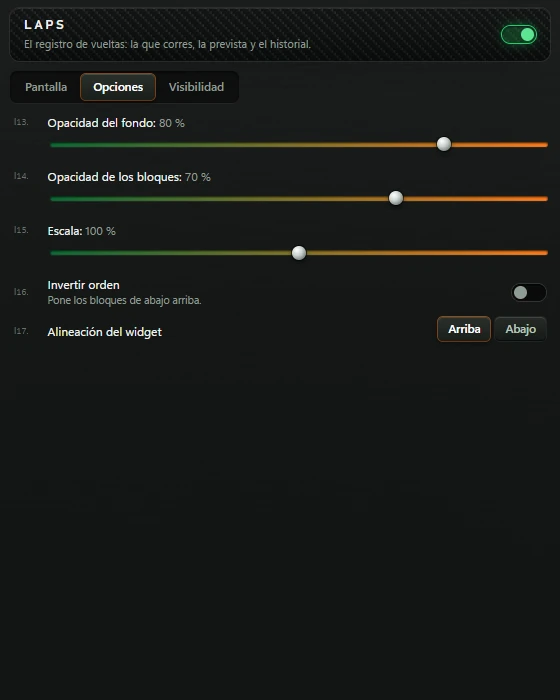
| Option | What it does | Factory default |
|---|---|---|
| Opacidad del fondo (background opacity) | Slider 0–100%, steps 5. | 80 % |
| Opacidad de los bloques (block opacity) | Slider 0–100%, steps 5, for each block background. | 70 % |
| Escala (scale) | Slider 50–150%: text size. | 100 % |
| Invertir orden (reverse order) | Reverses blocks from bottom to top. | off |
| Alineación del widget (widget alignment) | Arriba (top) or Abajo (bottom): aligns blocks within the overlay. | Arriba (top) |
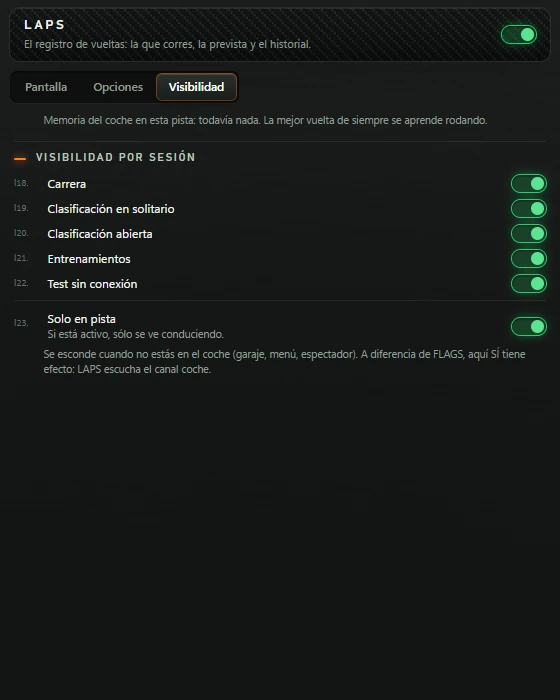
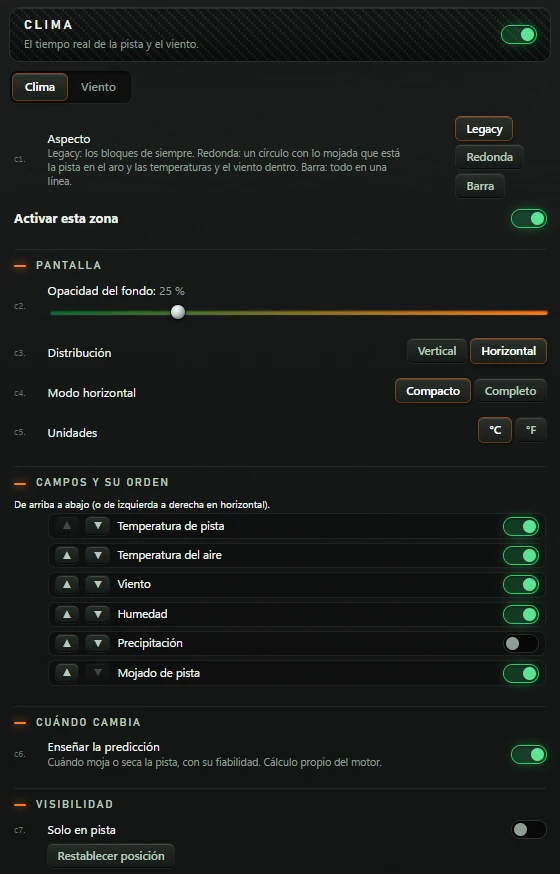
CLIMA shows track/weather conditions and when the track will get wetter or dry. Two independently enabled areas: CLIMA (default on) and VIENTO (wind) (default off).
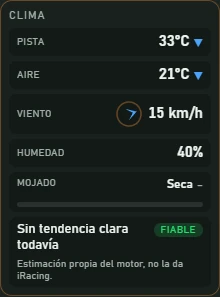
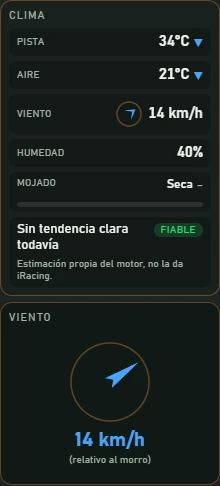
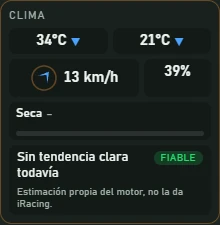
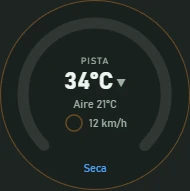

CLIMA header describes live track weather/wind. Two tabs: Clima (weather) and Viento (wind), one per area.
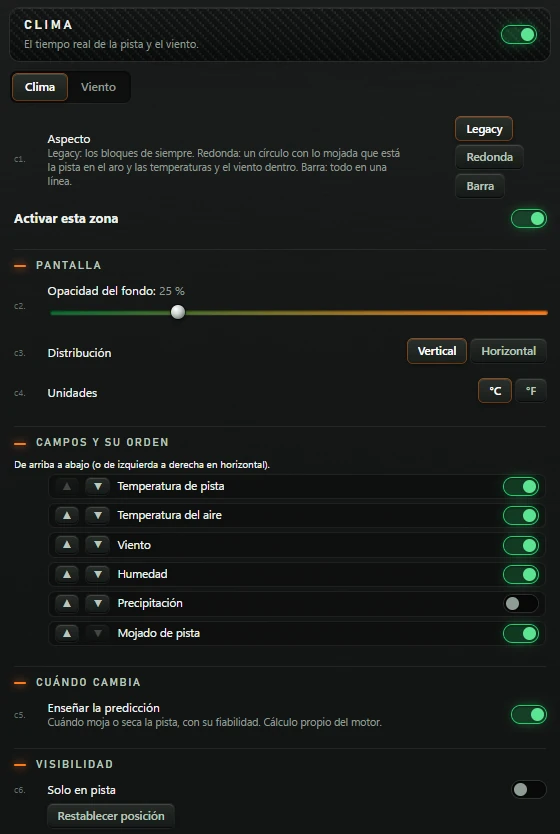
| Option | What it does | Factory default |
|---|---|---|
| Aspecto (appearance) | Legacy, Redonda (round) or Barra (bar). Legacy: standard blocks. Redonda: wetness ring with temperatures/wind inside. Barra: everything on one line. Applies to all CLIMA. | Legacy |
| Activar esta zona (enable this area) | Turns the CLIMA area on/off. | on |
| PANTALLA (display) | ||
| Opacidad del fondo (background opacity) | Slider 0–100%. | 25 % |
| Distribución (layout) | Vertical (vertical) (stacked) or Horizontal (horizontal) (side by side). Horizontal reveals Modo horizontal (horizontal mode): Compacto (compact) (no field labels, default) or Completo (full). | Vertical (vertical) |
| Unidades (units) | °C or °F. | °C |
| CAMPOS Y SU ORDEN (fields and order) · top to bottom, or left to right when horizontal. | ||
| Temperatura de pista (track temperature) · Temperatura del aire (air temperature) · Viento (wind) · Humedad (humidity) · Precipitación (precipitation) · Mojado de pista (track wetness) | Each row has ▲ and ▼ to move it up/down, with first-up/last-down disabled grey, plus a visibility toggle. | all on except Precipitación |
| CUÁNDO CAMBIA (when it changes) | ||
| Enseñar la predicción (show prediction) | When the track gets wetter or dries, with confidence. Calculated by the engine. | on |
| VISIBILIDAD (visibility) | ||
| Solo en pista (on track only) | CLIMA area visible only while driving. | off |
At the end, Restablecer posición (reset position).
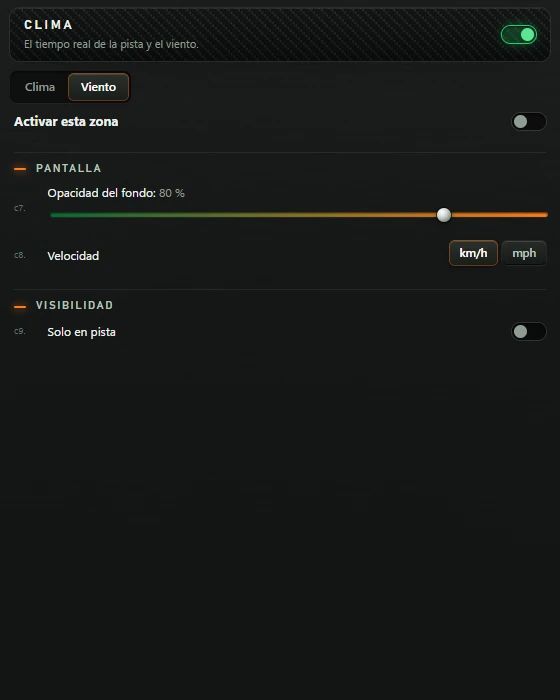
| Option | What it does | Factory default |
|---|---|---|
| Activar esta zona (enable this area) | Turns the VIENTO box on/off. | off |
| Opacidad del fondo (background opacity) | Slider 0–100%. | 80 % |
| Velocidad (speed) | km/h or mph. | km/h |
| Solo en pista (on track only) | VIENTO box visible only while driving. | off |

| What happens | What to do |
|---|---|
| Overlay says Sin datos del motor (no engine data). | No incoming data. Check engine on (green Suite bar dot) and simulator running. May briefly appear in Suite preview before demo data arrives. |
| STANDINGS/RELATIVE says Esperando al simulador (waiting for simulator). | Engine running but no simulator session data yet. Enter a session. |
| FUEL says Esperando vueltas cerradas… (waiting for completed laps). | Fuel quantity not known yet. Appears when supplied by the simulator. |
| FUEL says provisional. | The engine does not yet consider the calculation reliable. Keep driving. |
| LAPS says sin vueltas todavía (no laps yet). | No completed lap in this session yet. |
| CLIMA says Sin tendencia clara todavía (no clear trend yet). | The engine sees no wetting/drying trend yet. |
| Overlay running but invisible. | Check menu master toggle green, session enabled in Visibilidad and Solo en pista (requires driving if on). Try Alt+H in case all were hidden. |
| Overlay off screen. | In its menu, Restablecer posición (reset position): returns to centre. |
| Cannot move the overlay. | Enter editing with F6 or EDITAR. Ctrl+Alt+L unlocks locked overlays. |
| Clicks do not reach the overlay. | Intentional: outside edit mode, clicks reach the simulator. Right-click the overlay for its menu. |
| CLIMA VIENTO box absent. | Enable Activar esta zona in Viento and use Legacy Aspecto. |
| Barra LAPS/CLIMA clipped on the right. | Factory width cannot fit the whole bar. Use Legacy or Redonda. |
| Changed size and cannot restore it. | In the Suite below preview, click de fábrica (factory default). Also clears the saved position. |
| Starting asks you to create a Push & Lift account to open apps. | Create your account on the Push & Lift screen; see SUITE manual. |
| Preview says El banco no arranca: (preview engine cannot start), with a reason. | Suite preview engine failed to start; reason shown beside it. Click the app to close its screen, then again to retry. |