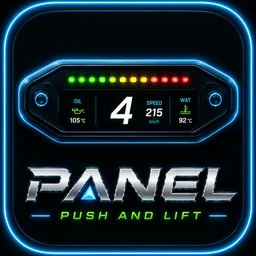
The dashboard with your own and reference pedals, two LED strips and race warnings.
What it is for
PANEL is a full dashboard: speed, revs, gear, next braking point, brake bias and session data, with your pedals and those of the reference lap.
How to open and place it
In the Suite menu, DDU group, click PANEL. On the left you see DISPLAY and on the right its menu.
Click START. STOP removes it.
AUTOMATIC: it starts with the simulator and stops when you close it.
The dropdown chooses which screen it appears on. VR tells you which window to capture in virtual reality. STREAMING copies the link to add it to OBS as a browser source. MANUAL opens this manual on the web.
Drag it to move it and stretch its corner to resize it.
To drive without a click touching it, the Ctrl+Alt+L shortcut locks and releases the overlays.
The menu
The app may show these labels in your language.
Shape: pill or round, size, always on top, drive mode, remember position and reset position.
What you place: the right slot (delta, my position, to braking or lap), the lower screen (session, tyres or fuel), the two middle numbers and the lower bar.
Strips: upper and lower strip: revs, throttle, brake, fuel, tyre temperature or none. Plus the number of LEDs.
Image: theme (minimal, light or transparent) and text size. For streaming: copy for OBS and OBS background, green chroma or black.
CSV: the reference lap.
Apply saves and close menu closes.
Common tasks
Choosing what is shown
Open what you place.
Choose each slot and apply.
Adding it to OBS
Open image.
Copy for OBS and paste the link as a browser source.
Choose the OBS background.
Common problems
It says waiting for iRacing: open the simulator and join a session.
It says no CSV or no reference: load a lap in the CSV section.
Round is marked as in preparation: that shape is not fully ready yet.
Full reference
Every option, text and notice of the app, with its real name.
SESSION REMAINING
DELTA TO BEST
LAP AND LAPS LEFT
BRAKE BIAS
NEXT CORNER
DELTA TO BEST
FLAGS
TYRE TEMPERATURE
Litres (manual setting)
1.5 LOW FUEL WARNING
Off
Speaking
Listening
1.6 FINE ADJUSTMENTS
LED · count
LED · height
LED · segment width
Reset
Reset Position
2.1 WINDOW
Always on top
Click through
Lock
Opacity
4.1 APPEARANCE
Accent
Theme
LIGHT
TRANSPARENT
Close application
APPLY
CLOSE MENU
Zone 8 (bottom left)
Zone 9 (bottom centre) Could not save settings.
Settings saved Reserved indicator. PLIA connection is not available yet.
Settings are saved and shown on the dashboard.
SOF, track temperature and the driver’s local time.
PUSH & LIFT keeps the pill shape. Transparent lets the elements float.
Window controls are available when opening PANEL from the Suite.
Could not change the window.
Drag the body to move it and the corner to resize it. Ctrl+Alt+U restores clicks.
Restore clicks
TRACK
TIME
Changes on the fly This one yes: you look at it while driving
Where the others put the position and never move it
It shows temperature, SOF and the time, and that is it
The top one is always the fuel, because that is what decides
Left you gain, right you lose Turn it off and it goes transparent, letters only
The round shape is not built yet.
Applies once the round shape exists.
These controls work when PANEL is opened from the Suite.
Copied — paste it into OBS as a «Browser» source.
Could not copy. The link is right up there.
«Always on top» and «Driving» work when PANEL is opened from the Suite.
 PUSH & LIFT