COACH DDU · THE PILOT'S MANUAL

One countdown. Then the full technical picture.

This page has two parts. Part 1 is the one-minute overview — read it before your first session. Part 2 is the full, detailed reference — every LED, every panel, every widget, every menu — written for a pilot, not a developer. Come back to it whenever you want to get more out of the app.

PART 1 · OVERVIEW

What COACH DDU actually does.

COACH DDU is the deepest of the three Push & Lift engines — one fixed dashboard panel instead of a build-your-own canvas, sitting in place of iRacing's native Driver Inputs widget. It reads your live telemetry and compares it, corner by corner, against a reference lap — built on the same CSV·DDU reference-lap engine that powers every Push & Lift app — and turns the comparison into real-time braking coaching, not just a replay.

Five LEDs count you down into every braking point, a dedicated COACH row grades the corner you just left, and two live traces plus a set of always-on gap cells tell you exactly where you stand — all without taking your eyes off the apex.

01

The countdown

Five LEDs die left-to-right over the 3 seconds before each braking point, and the big LED counts 3·2·1·BRAKE — or shows LIFT where no brake is needed at all.

02

The side panel

Position, Strength of Field, iRating & Safety Rating, fuel and temperature — a fixed strip you can toggle widget by widget.

03

Live traces, synced by distance

Your telemetry and the reference lap's, drawn on the same track-distance axis, so the comparison holds up even when the two laps take very different times.

04

The COACH row

A dedicated strip that turns the countdown's verdict into a full readout: braking point, brake pressure and time gained or lost, corner by corner.

05

Deltas — track & class

Four gap cells, always on screen: who's near you on track right now, and where the real fight sits inside your own class.

06

VR & borderless

Runs borderless and always-on-top, ready to pin into a headset — no window frame floating in your field of view.

Quick start.

Get a reference lap

Load a Garage 61 CSV, or record your own straight from the app — either works as the corner-by-corner answer key.

Launch it and join a session

The panel comes alive the moment it's reading your live telemetry, and the countdown starts before your very first braking point.

Read the countdown

Five lights, one colour, one number — that's every braking point on the track, before you get there.

That's the whole idea. Everything below is the same app explained in full — read on whenever you want the fine detail on any part of it.

PART 2 · THE FULL MANUAL
DETAILED · PILOT-LEVEL

Everything, in detail.

Eleven sections, in the order you'll actually use them: getting a reference lap, reading the countdown, the live traces, the side panel, the COACH row, the track & class deltas, the complete menu, licensing, first run and robustness, languages, and the new docked screens.

01 · THE REFERENCE LAP

Nothing is memorised — every call comes from a lap you supply.

COACH DDU runs on the CSV·DDU engine, built to be flexible about where your data comes from: the CSV header can appear on any row, in any column order, and each column is matched by a list of known aliases rather than one exact name. LapDistPct can be 0–1 or 0–100, pedal inputs 0–1 or 0–100, steering in radians or degrees, and speed in m/s or km/h — all auto-detected, so you don't have to reformat anything by hand. When the file is a Garage 61 export, the car and track metadata is read straight from the filename.

You can also record your own reference lap without leaving the app:

If you leave the track or the session, or close the app with recordings still unsaved, it asks whether to export them as CSV. Say yes and they land in grabaciones/<track>_<date>/Lap NN - time.csv — ready to load back in as a reference any time.

02 · READING THE COUNTDOWN

Five dots, one LED, one colour — and the colour arrives first.
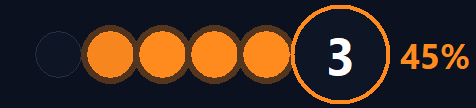
COACH DDU countdown: five LEDs mid-countdown next to the big BRAKE LED, coloured by the reference lap's braking intensity for the corner ahead

This is the same countdown logic first proven in an earlier stand-alone tool, ported straight into COACH DDU. The five dots light up 3 seconds before the reference lap's braking point and go dark left to right; the last one dies exactly on the ideal point. The big LED next to them counts 3 · 2 · 1 · BRAKE — or shows LIFT for corners that need no brake at all.

The colour is set from the reference lap's peak brake percentage for that corner, so it reaches you before the corner does:

LIFTblue · peak brake ≤3% — the LED shows LIFT instead of counting to brake
3–10%green · a brush of brake
10–25%yellow · light braking
25–60%orange · proper braking
>60%red · a big stop

Once you're actually on the brake, the BRAKE text keeps talking to you: it flashes red if you're under-braking compared with the reference, or blue if you're over-braking — smoothed so it reads as a trend, not a flicker.

03 · THE LIVE TRACES

Two rows, synced by distance — not by time.

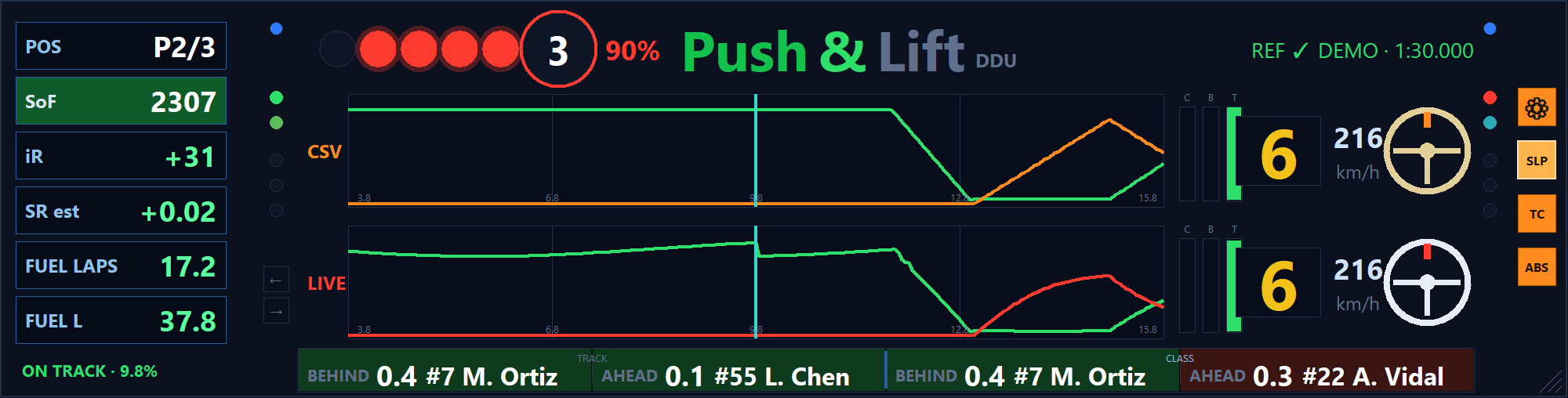
Above the countdown, two traces share the same X-axis: the reference lap on top, your own live telemetry underneath. That axis is LapDistPct — distance around the lap, not elapsed time — so the two rows stay meaningfully lined up even when your lap and the reference lap take very different amounts of time to complete.

Both traces show a window of ±6% of the lap, centred on your current position on track, and it wraps correctly across the finish line — the window never breaks or jumps as you cross start/finish.

Your progress through that window is spelled out in the header as ON TRACK · 34.5% (the number updates live), and a ruler underneath the traces marks five tick points with the matching percentage under each one.

04 · THE SIDE PANEL

A fixed strip of widgets, each one optional.

COACH DDU side panel: position, strength of field, iRating and Safety Rating, fuel laps and litres, and track temperature docked beside the main panel

Next to the main panel sits a strip of small widgets. Every one of them can be switched on or off independently from the menu (see section 07), so the panel only ever shows what you actually want to glance at:

POSYour live position. Its background flashes green when your last lap was faster than the one before it, red when it was slower.
SoFStrength of Field for the session — its background doubles as the current session flag colour (green, blinking yellow, checkered, and so on).
iR · SRYour live iRating and Safety Rating.
FUEL LAPSFuel remaining, expressed in laps.
FUEL LFuel remaining, expressed in litres.
TEMPA tyre and track temperature readout.

Each widget has its own checkbox in the menu's Side boxes submenu, so you can drop the ones you never look at and keep the strip as tight as you like.

05 · THE COACH ROW

The countdown's verdict, spelled out corner by corner.

COACH row: purple best-lap-of-session delta on the left, live BRAKE and PRESS verdict for the corner just left on the right

The COACH row is a dedicated strip you can pin to the top or bottom of the panel (Menu → Display → Coach row position). It's split in two:

The measurement window runs about 100 metres past the corner too, so the grade covers your exit, not just the braking zone.

New — the AI Coach. COACH now also briefs you before each corner: a banner shows the next corner's braking point (metres counting down), target apex speed and gear, and where you're losing versus the reference. Turn on audio cues (Menu → Window) for a beeped countdown to the braking point — the final beep's pitch encodes how hard the reference brakes — and Coach voice to have the one thing to fix spoken out loud. Optionally, AI Coach (analyze lap) sends your lap summary to an AI with your own API key (Claude, or free models via OpenRouter) and returns a corner-by-corner report whose "single fix" feeds the live brief. Works offline without any key — the AI only enriches it.

06 · DELTAS — TRACK & CLASS

Four gap cells, always on — nothing to toggle.

Two pairs of cells sit either side of the panel, both computed from the same live progress snapshot, so they never disagree with each other:

Each cell shows the gap together with the car number and driver name — for example #22 A. Vidal — or a plain when there's no data for that slot.

07 · MENU REFERENCE

Right-click anywhere on the panel. Every item, explained.

08 · OPEN BETA

Free while we're in beta — no licence needed.

COACH DDU is free and fully unlocked during the open beta — nothing to buy, no licence key, no countdown. Just run it.

Once licensing is active again, activation will need an internet connection once, then quietly re-validate every few days in the background, with an offline grace window — so losing your connection on race day won't lock you out mid-session.

09 · FIRST RUN & ROBUSTNESS

What to expect the first time you run it, and why it doesn't lag.

On first launch, Windows may warn that COACH DDU is an "unrecognized app." That's SmartScreen reacting to any new, unsigned executable — a paid, yearly code-signing certificate isn't justified at this stage — not a sign of anything malicious. The fix is More info → Run anyway.

Under the hood, telemetry is read on its own 60Hz thread that only ever keeps the single latest frame in a slot; the interface draws at 60fps reading from that same slot, so a slow frame never causes a buildup of stale data or visible lag.

The steering wheel on both the reference row and your live row is drawn by one shared function, in real radians matching iRacing's own convention (positive = left), so the two never visually mismatch.

Dashboard inputs keep drawing even while you're in the pits or the garage — only the countdown LEDs go dark off-track. The rest of the panel never blanks out.

10 · LANGUAGES

Six languages, one click.

English, Spanish, German, French, Italian and Chinese — every menu, every popup and the in-app manual switch instantly from Language in the right-click menu. Your choice is remembered the next time you open the app.

↑ Back to the top

11 · DOCKED SCREENS (NEW)

Up to 4 extra screens around the panel — the full 100-function catalogue from ADVANCE, right inside COACH.

From the right-click menu, open Screens to switch on up to 4 docked mini-screens — top, bottom, left, right — glued to the COACH panel and moving with it. Each one is divisible into its own cells, and every cell can hold any of the 100 functions from Push & Lift ADVANCE: Relative, Standings, deltas, tyres, fuel/pit strategy, gaps — the exact same catalogue and the exact same picker, not a smaller one.

Built for the odd thing you need just for one practice session, without leaving COACH or opening a second app. Resize a screen by dragging its outer edge; lock them from accidental taps in the race with Screens → Edit docked screens.

↑ Back to the top
COACH DDU — the pilot's manual Download